Editing prompts and mixing styles
Improve a result step by step and combine styles to get something new.
Your first result is rarely the final one. The fastest way to a great image is to change one thing at a time and see what happens.
Change one thing at a time
Open a result and click Reuse prompt and settings. The prompt, model and format fill back in. Now change just one part:
| Round | Change | Why |
|---|---|---|
| 1 | The light: "golden hour" to "blue hour" | Sets a new mood |
| 2 | The lens: "wide angle" to "close-up" | Changes the framing |
| 3 | The style: "photo" to "watercolor" | A new look for the same scene |
If you change everything at once, you won't know what made it better or worse.
Edit the image, not the prompt
For small fixes, it's often faster to edit the picture itself. Open the result, click Edit this image and describe the change. This needs an Edit model (Nano Banana 2, Pro or Lite).
Keep everything the same, but change the jacket to dark green and make the sky a bit more orange
Mixing styles
Combining two styles often gives the most original results. Name both and say how they meet.
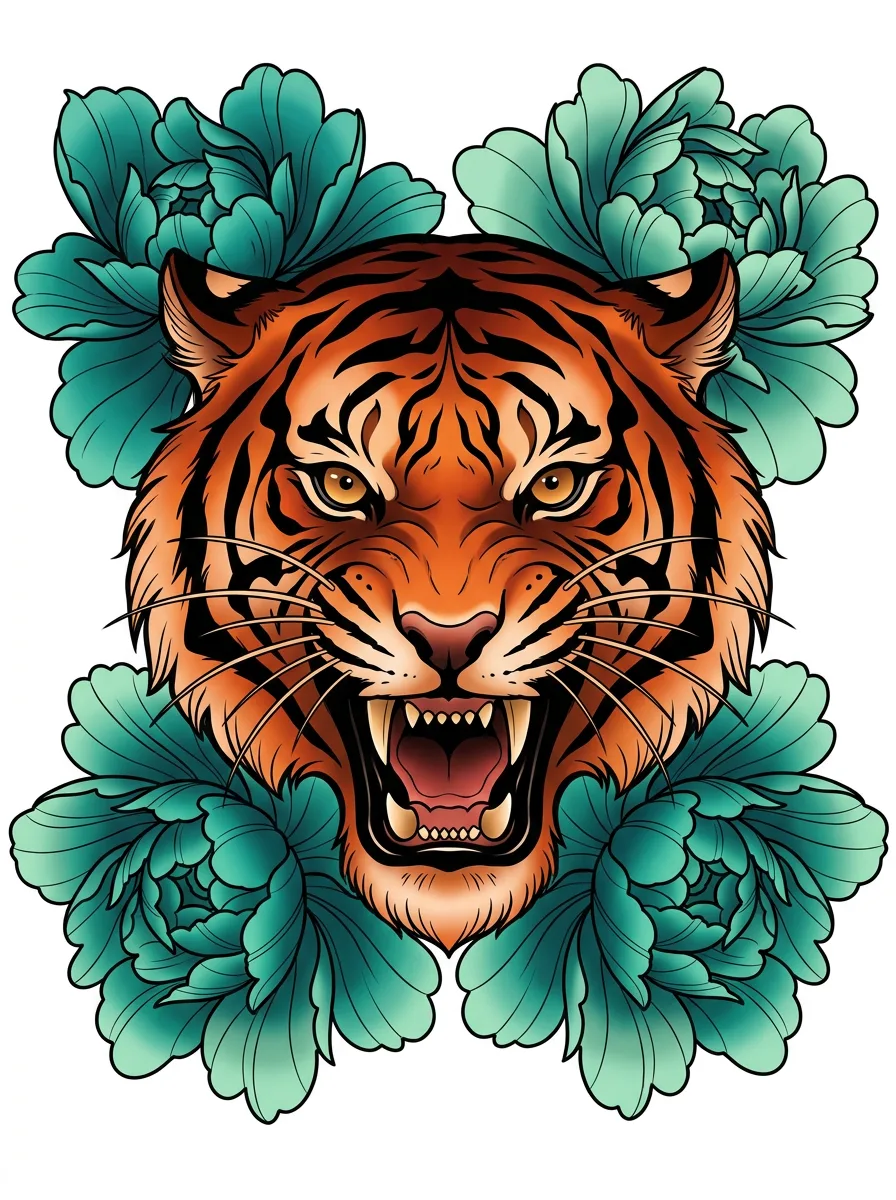
A tiger surrounded by peonies, drawn as a Japanese tattoo, with soft watercolor washes in the background
Cyberpunk street at night in the rain, painted in the style of a classic oil painting, neon reflections on wet cobblestones
Good pairings to try:
- Photo + miniature diorama (tilt-shift look)
- Anime + watercolor
- 3D clay + product photo
- Synthwave + landscape photo
- Vintage poster + modern object
Order and weight
Words at the start of a prompt usually carry more weight. If one style is taking over, move the other one earlier, or repeat it once ("strong watercolor texture").
Keep what works
When you get a great result, use Copy prompt and save it somewhere. Over time you'll build your own set of prompts. See Prompt templates for a starting set.
Tip
Try the same edited prompt on two different models. Sometimes the model matters more than the words. See Choosing a model.